Workflow Examples
These walkthroughs show how SmartCropper tools can be combined on sample assets. They are illustrative demos only, not customer case studies, testimonials, or measured business results.
Prepare source images
Start with a single image and adapt it for the layout or channel you need.
Improve clarity when needed
Use upscaling selectively for smaller files that need a larger presentation.
Export lightweight results
Compress the finished image so it is easier to publish, send, or store.
Product Gallery Cleanup Demo
Illustrates how to standardize mixed product photos for a cleaner storefront presentation.
Scenario
A sample set of catalog photos arrives with inconsistent aspect ratios, uneven resolution, and large file sizes.
Example workflow
Tools used in this demo
Note
This is a sample workflow using demo assets. It is not a customer story and does not represent measured business outcomes.
Sample before / after layout
 Source
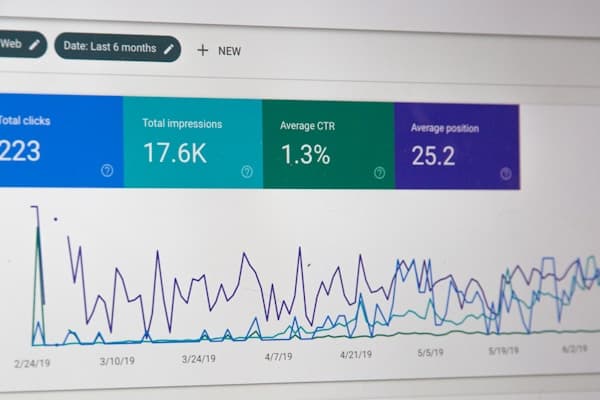 Output example
Social Profile Kit Demo
Shows a repeatable workflow for preparing profile images, thumbnails, and platform-specific crops.
Scenario
A creator wants one source image adapted into a few common formats without juggling multiple editors.
Example workflow
Tools used in this demo
Note
This page presents an illustrative demo only. It does not describe a real agency, customer, or verified productivity gain.
Sample before / after layout
 Source
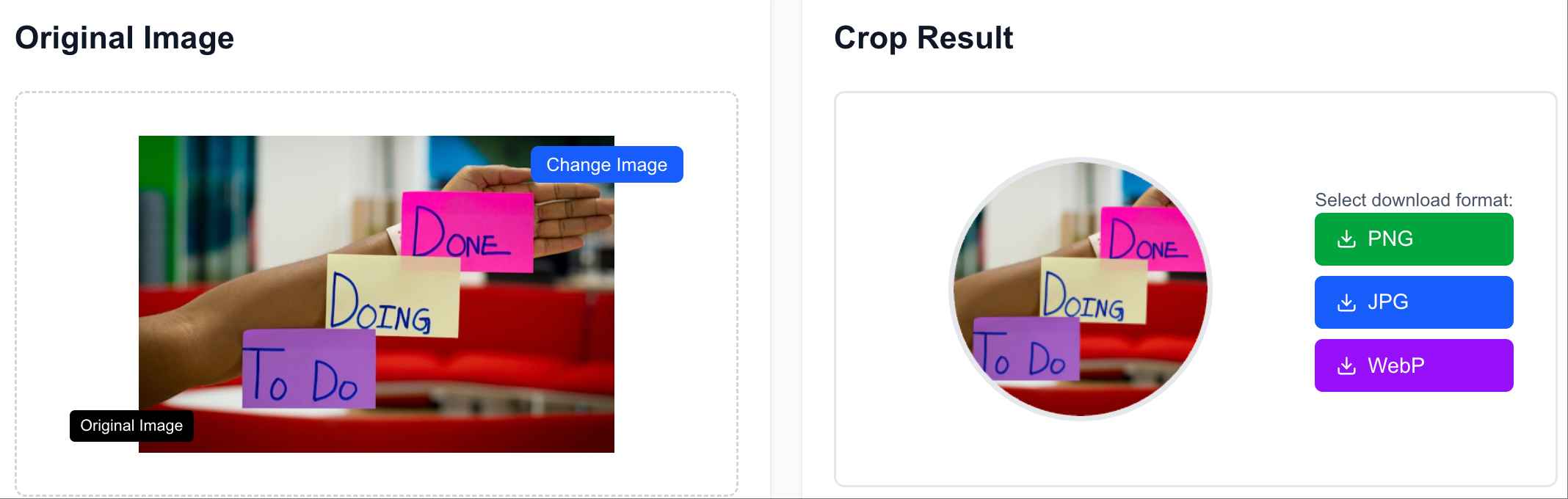 Output example
Archive Refresh Demo
Demonstrates a careful way to improve older images before resizing or sharing them online.
Scenario
An older photo needs a higher-resolution version for a presentation, profile card, or lightweight web gallery.
Example workflow
Tools used in this demo
Note
This example is provided to explain the tool workflow. It is not a testimonial, restoration guarantee, or reported ROI result.
Sample before / after layout
 Source
 Output example
Try the tools on your own images
Use these examples as a starting point, then open the tools to crop, resize, compress, or upscale your own files.